
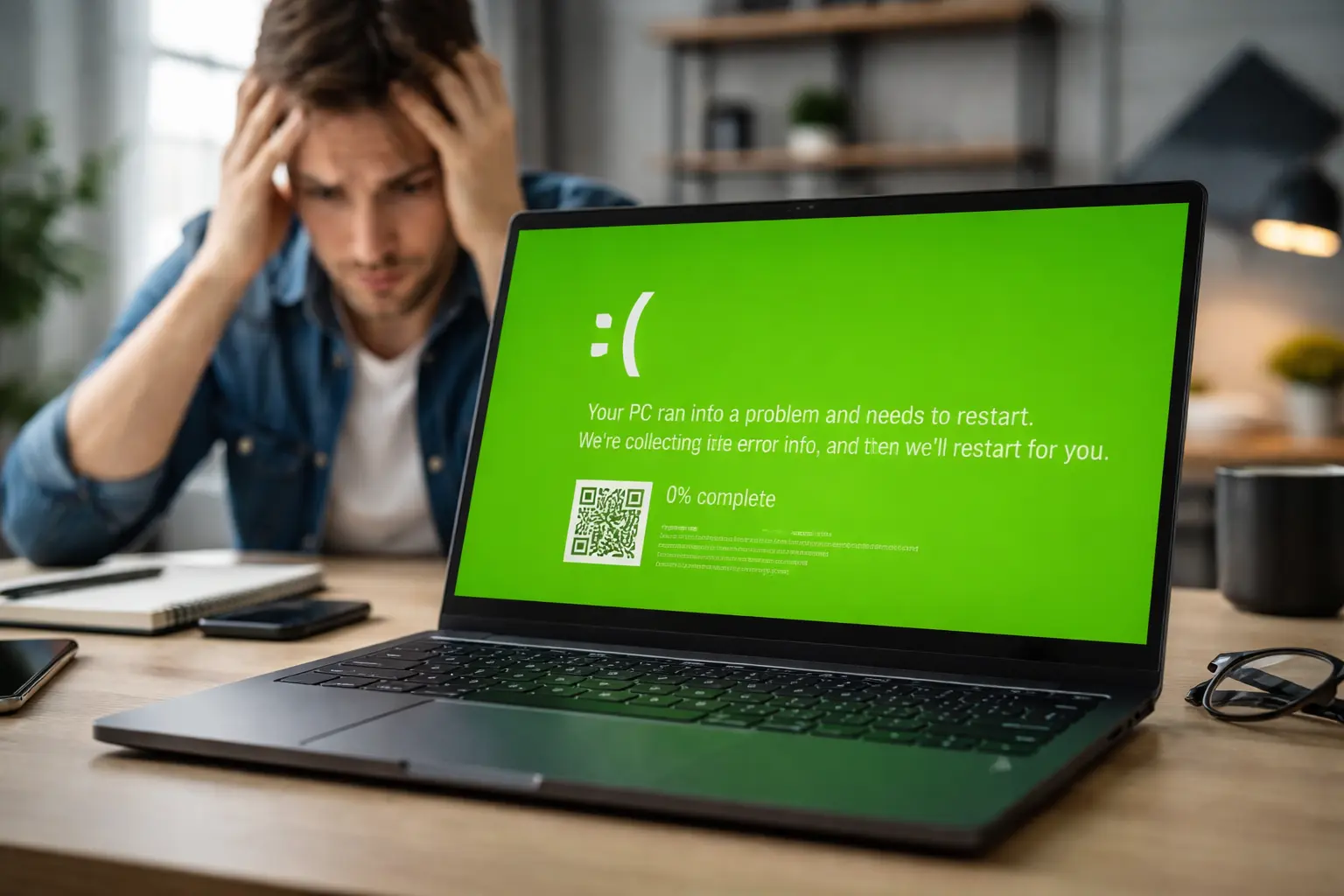

Seeing a green screen on your laptop can be stressful. It often appears suddenly, without any warning. One moment everything is working fine, and the next moment your screen turns green. Many people think their laptop is broken or that they will lose their data.
From my experience, this issue is more common than most users think. I have seen many cases where the problem was not serious at all. In fact, simple fixes like updating drivers or restoring the system solved it quickly. The real challenge is not knowing what caused the issue or what step to take first. That is why this guide will help you understand the problem and show you how to fix laptop green screen issues step by step.
My Laptop Is Showing a Green or Blue Screen
If your laptop suddenly shows a green or blue screen, it usually means something is wrong with the system.
This can happen because of:
- Software errors
- Driver problems
- Hardware issues
In most cases, the issue is not permanent.
What Is the Green Screen of Death (GSOD)?
The Green Screen of Death (GSOD) is a system crash.
It is similar to the blue screen error. It mostly appears on test versions of Windows.
When this happens:
- Your laptop may freeze
- You may see an error message
- The system may restart
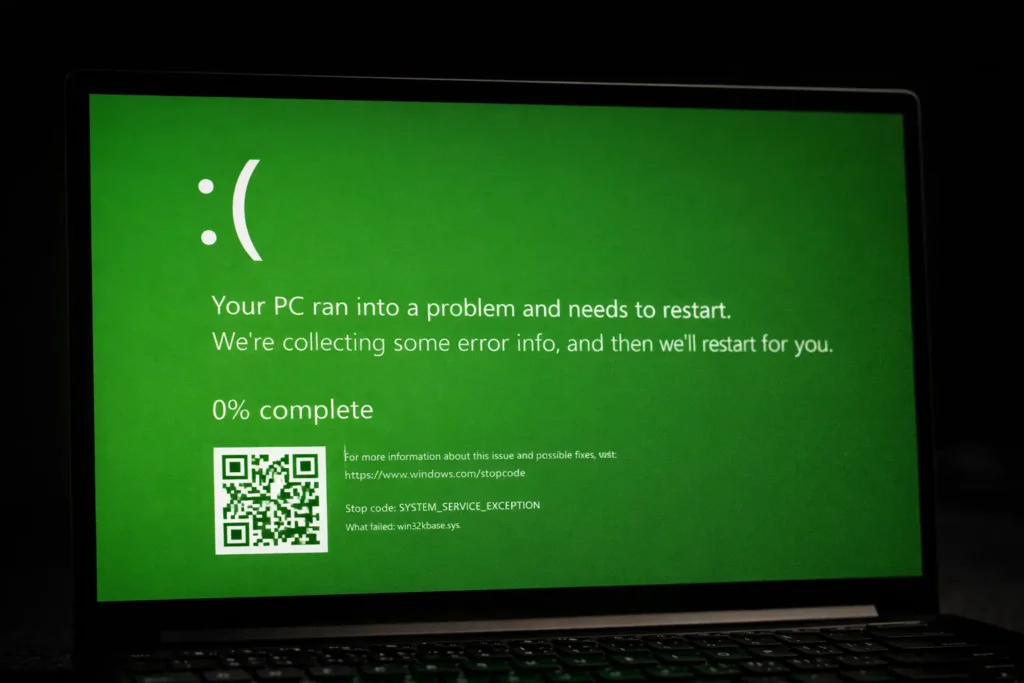
What Happens When Screen Turns Green?
When your screen turns green, you may notice:
- The laptop stops responding
- The screen shows only green color
- Lines or flickering appear
- The system restarts again and again
This can interrupt your work or study.
Types of Green Screen Problems
Not every green screen means the same thing.
Green Screen of Death (GSOD)
- Full green screen
- System crash
Green Tint on Screen
- Screen looks greenish
- Laptop still works
Green Lines or Flickering
- Lines appear on screen
- Possible screen damage
Quick Diagnosis (Find the Problem Fast)
Before fixing, check what is causing the issue.
Check BIOS Screen
Restart your laptop and open BIOS.
- If the screen is green → hardware problem
- If normal → software issue
Use External Monitor Test
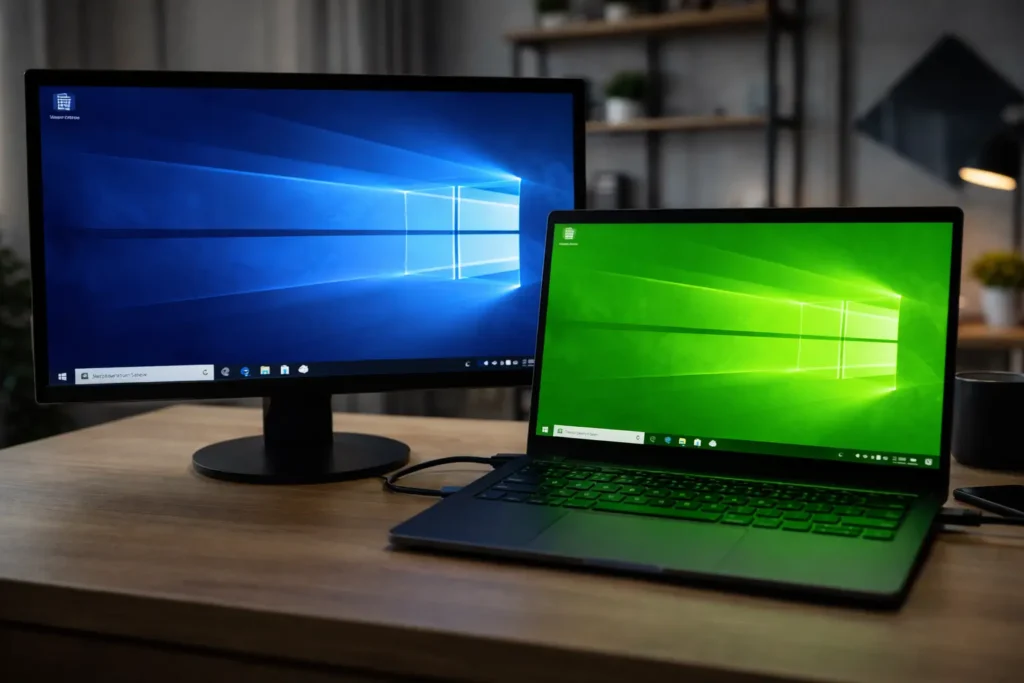
Connect your laptop to another screen.
- External screen is fine → laptop screen issue
- External screen is also green → GPU issue
Check When It Happens
- On startup → system problem
- During videos → graphics issue
- After update → software bug
This step helps you avoid wasting time.
What Should You Do Next?
Now that you have an idea of what is causing the green screen, follow the right step based on your situation.
- If it looks like a software issue, update your drivers or use System Restore.
- If it looks like a screen problem, check the display cable or consider replacing the screen.
- If it looks like a GPU issue, compare repair cost before spending money on fixes.
Why Your Laptop Screen Is Green
Here are common causes:
- Outdated graphics drivers
- Corrupt system files
- Faulty GPU
- Loose display cable
- Damaged screen panel
- Problematic apps or antivirus
- Windows update errors
How to Fix the Green Screen on Your Laptop
Try these methods step by step. Start with the easiest one.
What to Try First
If your laptop screen turns green, start with these quick checks before trying advanced fixes.
- Restart your laptop
- Disconnect external devices
- Update graphics drivers
- Test with an external monitor
- Run Startup Repair
Repair with Windows Recovery Environment
This tool can fix system errors.
Steps:
- Restart your laptop
- Press Shift + Restart
- Select Troubleshoot
- Click Advanced Options
- Choose Startup Repair
Use Restore Point
This option takes your laptop back to a working state.
Steps:
- Open Advanced Options
- Click System Restore
- Choose a restore point
- Follow the steps
Restore with Windows Recovery Environment
If the issue continues, reset your system.
Steps:
- Open Recovery Environment
- Click Reset this PC
- Choose:
- Keep files
- Remove everything
Method 1: Fix the Green Screen on Laptop by Disconnecting External Devices
Sometimes external devices cause problems.
Steps:
- Remove USB devices
- Disconnect external monitor
- Restart laptop
Method 2: Fix the Green Screen on Laptop by Updating the Drivers
Old drivers can cause display issues.
Steps:
- Open Device Manager
- Expand Display Adapters
- Right-click your GPU
- Click Update Driver
Method 3: Fix the Green Screen on Laptop by Removing Low-Quality Antivirus
Some antivirus tools create system conflicts.
Steps:
- Uninstall the antivirus
- Restart your laptop
- Use trusted software
Method 4: Fix the Green Screen on Laptop by Reinstalling Windows
Use this only if other methods fail.
Steps:
- Backup your data
- Go to Settings > Recovery
- Click Reset this PC
- Follow instructions
Fix Based on Situation
Green Screen on Startup
- Use Startup Repair
- Run System Restore
Green Screen During Videos
- Update graphics drivers
- Check video apps
Green Screen After Windows Update
- Roll back update
- Use restore point
Hardware Fixes (Advanced)
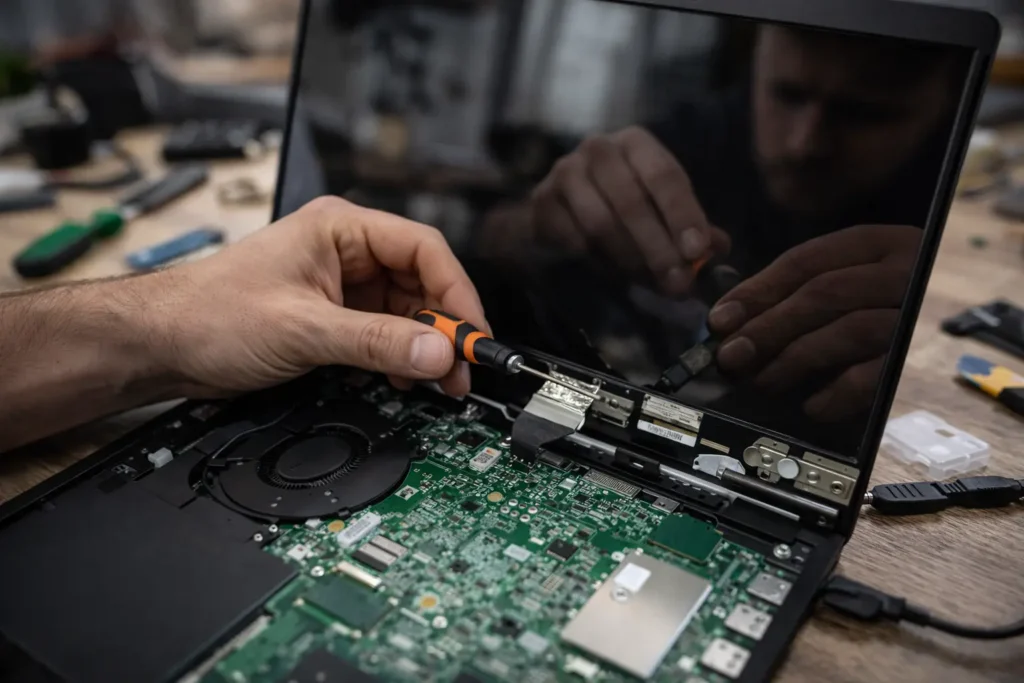
If software fixes do not work, the issue may be hardware.
- Loose display cable → reconnect
- Damaged screen → replace screen
- GPU issue → repair or replace
Repair Cost & When to Replace
Here is a simple idea:
- Screen replacement: $50–$150
- Cable repair: low cost
- GPU repair: expensive
If repair cost is too high, replacing the laptop may be better.
How to Prevent Green Screen Issues
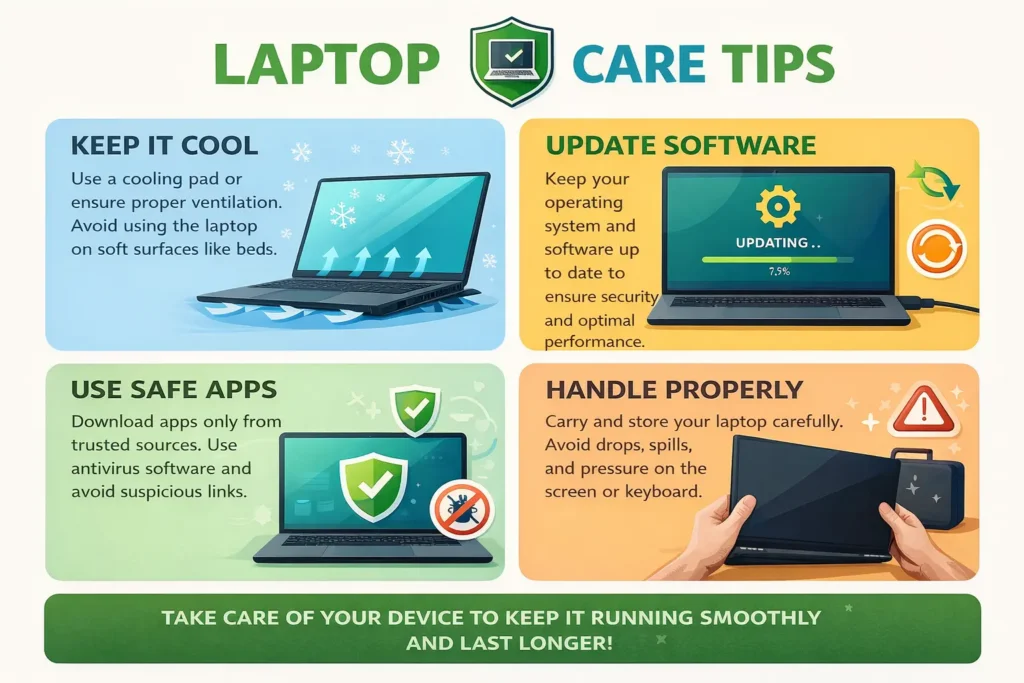
You can avoid this problem by following these tips:
- Keep drivers updated
- Avoid overheating
- Use original charger
- Do not install unsafe apps
- Handle your laptop carefully
Frequently Asked Questions
Why is my laptop screen green but still working?
This usually means a display or driver issue.
Can a green screen fix itself?
Sometimes it may go away after restart, but the issue can return.
Is green screen a virus?
No, it is usually a system or hardware problem.
How do I fix green lines on my laptop screen?
Check the display cable or screen. It may need repair.
Key Takeaways
- Most green screen issues come from drivers, software bugs, or display problems.
- You can fix many cases at home without paying for repair.
- The external monitor test is one of the fastest ways to find the real problem.
- If the issue appears in BIOS, it often points to hardware trouble.
- Always try simple fixes before paying for advanced repair.
Conclusion
From my experience, most laptop green screen problems can be fixed without professional help if you follow the right steps. Start with simple solutions like updating drivers or disconnecting devices, and only move to advanced fixes if needed. This approach saves both time and money. However, if the issue appears even in BIOS or on an external monitor, it is likely a hardware problem and may require repair. The key is to stay calm, diagnose the issue properly, and fix only what is necessary.
